Configure Google
This guide will cover how to configure Google as an identity provider for OpenFaaS IAM. This is an easy way to authorize with OpenFaaS if your team is already using Google Workspace.
-
Setup a new project in the Google API console
-
Configure the OAuth consent screen.
Follow the steps to configure the OAuth consent screen under APIs & Services -> OAuth consent screen.
If you are a Google Workspace user you can make your app available to any user within your organization by registering it as an internal app.
-
Obtain OAuth 2.0 credentials
There are two possible client credentials setups:
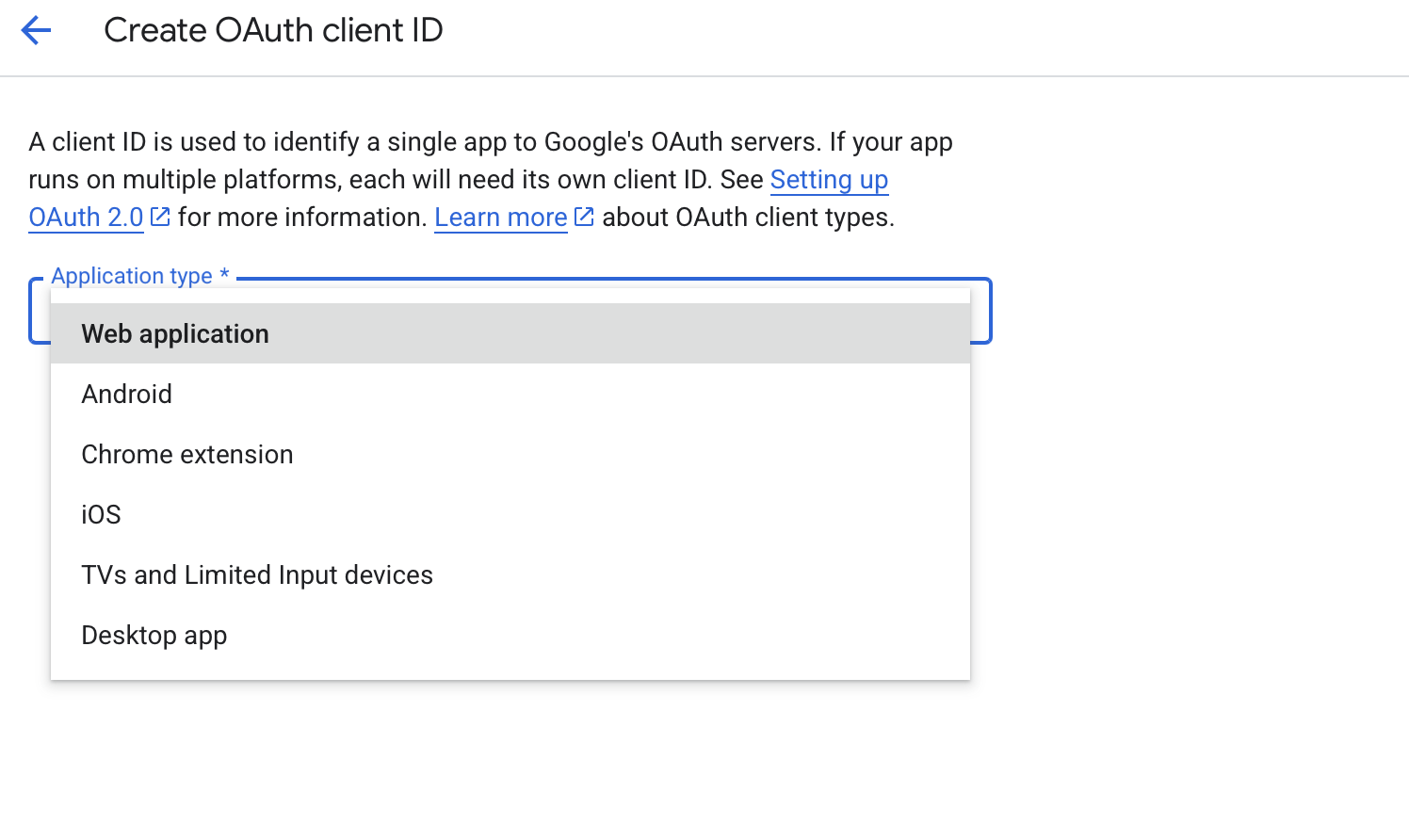
- A single Web application client shared by both the dashboard and the CLI, using the Implicit Id flow for the CLI.
- One Web application client for the dashboard and a separate TVs and Limited Input devices client for the Device Authorization flow with the CLI.
Create new OAuth Client ID credentials under APIs & Services -> Credential for each application type you need.
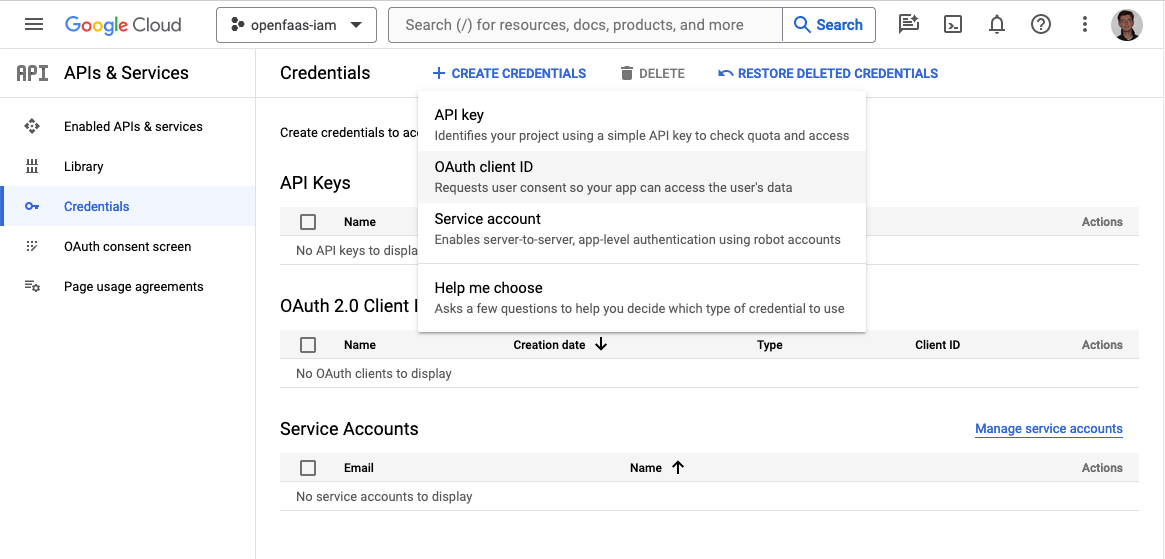
When creating the credentials you are asked to select an application type:
Each client has its own client ID and secret. All client IDs will need to be added to the
audfield of the JwtIssuer in step 5. -
Add the callback URLs to the list of valid redirect URIs on the Web application client.
- For the dashboard, add the redirect URI for your dashboard e.g
https://dashboard.openfaas.example.com/auth/callback. - For the CLI, add
http://127.0.0.1:31111/oauth/callbackif you intend to use the Implicit Id flow.
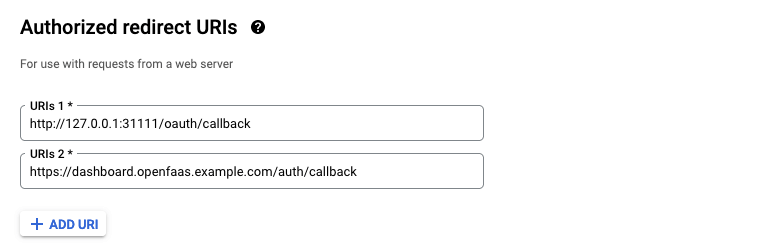
- For the dashboard, add the redirect URI for your dashboard e.g
-
Register Google as a JwtIssuer with OpenFaaS
Create a JwtIssuer object in the
openfaasnamespace to register Google as a trusted issuer for OpenFaaS IAM.Example issues for Google:
apiVersion: iam.openfaas.com/v1
kind: JwtIssuer
metadata:
  name: accounts.google.com
  namespace: openfaas
spec:
  iss: https://accounts.google.com
  aud:
    # Dashboard - client id of the Web application credentials
    - 156723843784956-dkebg39ro687we10ad39756kflrtpzsan.apps.googleusercontent.com
    # CLI - client id of the TVs and Limited Input devices credentials (Device Authorization flow)
    - 156723843784956-zsan39ro687we10ad39756kflrtpzdkebg.apps.googleusercontent.com
tokenExpiry: 12h
The
issfield needs to have the valuehttps://accounts.google.com.The
audfield contains a set of accepted audiences. For Google these are the client ids of the credentials that were created in step 3. Add the client id of the Web application credentials and, if you are using the CLI Device Authorization flow, the client id of the TVs and Limited Input devices credentials.The client IDs and secrets can always be accessed from Credentials in APIs & Services in the Google API console.
The
tokenExpiryfield can be used to set the expiry time of the OpenFaaS access token.
Login with the faas-cli
Google does not support the Authorization Code flow with Proof Key for Code Exchange (PKCE), so to login with the faas-cli you can use either the Device Authorization flow or the Implicit Id flow.
See SSO with the faas-cli for how to install the CLI and a full reference of the available login flags and flows.
Device Authorization flow
Use this flow if you opted for a separate client for the CLI. It uses the dedicated TVs and Limited Input devices client created in step 3 and requires the client id and client secret.
faas-cli pro auth \
  --grant device_code \
  --authority https://accounts.google.com \
  --client-id CLIENT_ID \
  --client-secret CLIENT_SECRET
Implicit Id flow
Use this flow if you opted for a single client shared by the dashboard and the CLI. It uses the Web application client created in step 3.
The CLI opens a browser to sign in and starts a local server to receive the token on the callback URL http://127.0.0.1:31111/oauth/callback. This URL needs to be added to the list of valid redirect URIs on this client (see step 4).
faas-cli pro auth \
  --grant implicit-id \
  --authority https://accounts.google.com \
  --client-id CLIENT_ID